The latest Ubuntu 11.10 is released few weeks ago and having plenty of good reviews with claiming that this is the ever best Ubuntu release. I do not use Ubuntu OS, but whenever latest versions are released, I install them on VirtualBox or VMware to update my blog. Here is the small guide about install VirtualBox guest additions on Ubuntu 11.10 and get the most of the extra features. 2D Unity works fine but 3D did not work automatically for me, I think still it’s a compatibility issue with latest VirtualBox 4.1.4.
The complete installation steps of Ubuntu 11.10 on VirtualBox not covered here, it’s very easy to follow (Refer the earlier guide Ubuntu 10.10 on VirtualBox). Once the installation is completed, the next restart will land on Unity 2D desktop (which happened automatically for me), so you get Unity 2D in VirtualBox even before install guest additions. But, other extra features such as auto screen re-size and seamless mode are not enabled without guest additions.

Therefore, let’s install the virtualbox guest additions on Ubuntu 11.10 and get these extra display improvements and check the 3D unity.
3D acceleration in virtual machine setting is already enabled.

My main aim is to get Unity 3D in Ubuntu 11.10 with VirtualBox, so I tried to install guest additions in three methods,
1) Running and executing the script from built in VirtualBox Guest additions ISO.
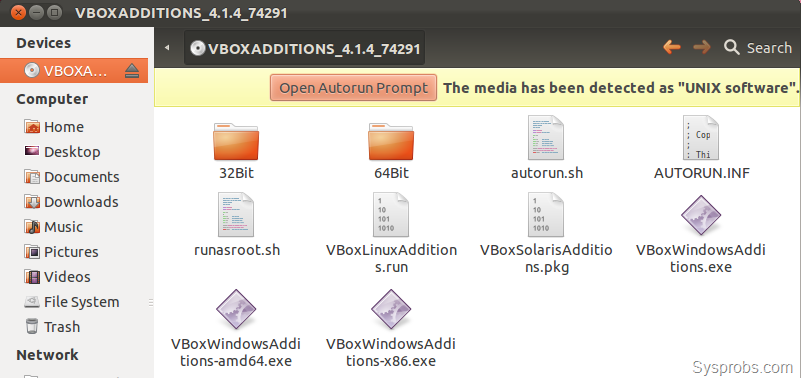
2) Running following command in terminal. Make sure guest virtual machine can communicate to internet and download packages.
sudo apt-get update
sudo apt-get install virtualbox-ose-guest-utils
3) Executing following commands in Ubuntu 11.10 terminal with internet access.
sudo apt-get update
sudo apt-get install build-essential linux-headers-$(uname -r)
sudo apt-get install virtualbox-ose-guest-x11
This method used to install guest additions on Ubuntu 10.10 as shown in Sysprobs.
I did above three installation steps individually as doing from beginning (used snapshot feature to revert back virtual machine), but could not get 3D unity login option. Even though all three were succeeded and got extra features as shown below.
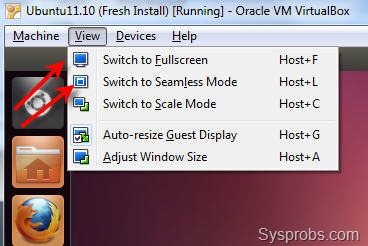
Restarting the virtual machine after every above installation steps landed on 2D unity only.
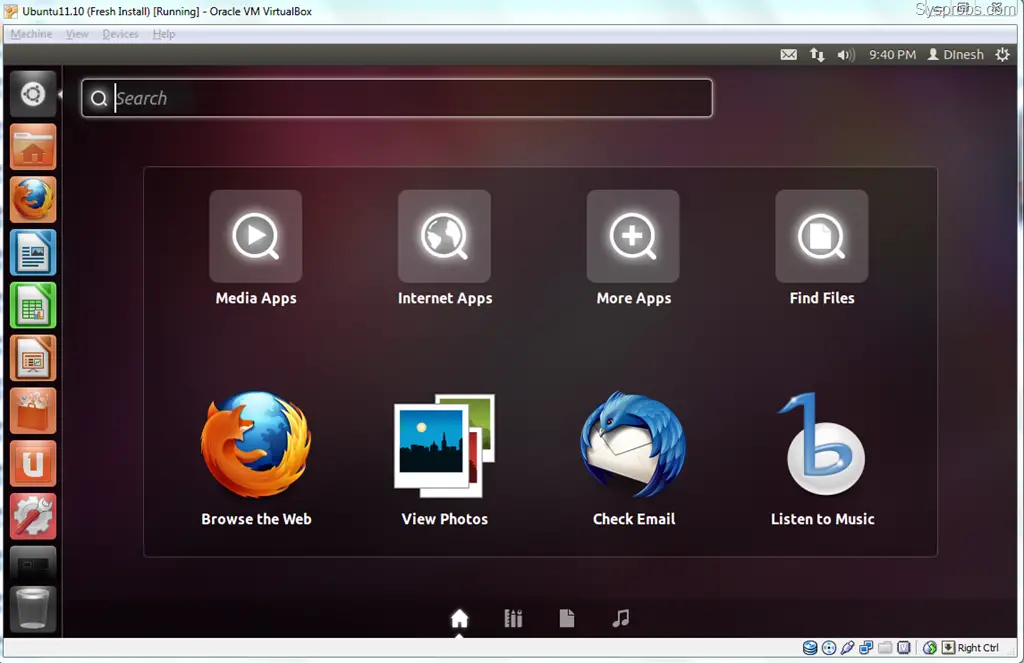
Now my question is, is this 3D Unity or should I get anything better then above screen (which is called 3D unity) ?
As per official conversation in VirtualBox forum, the latest VB 4.1.4 is still not supported for Ubuntu 11.10- click here to read.
How to Check 3D Unity Support
To check whether the virtual or physical machine can run Linux Ubuntu 3D unity, here is the command to check the compatibility, (Type the command and press Enter)
/usr/lib/nux/unity_support_test -p
Surprisingly Ubuntu 11.10 virtual machine returned the below result as 3D unity is supported.
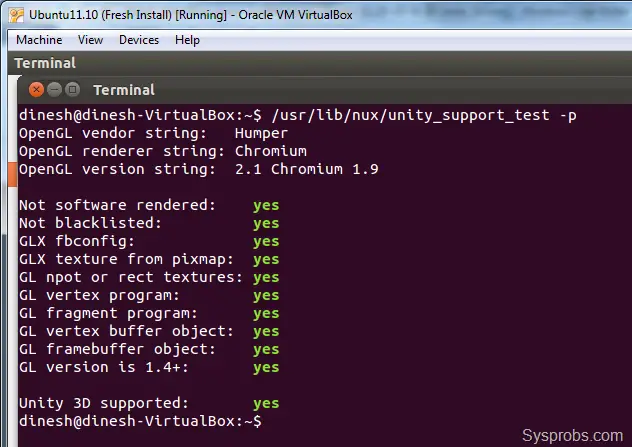
But I’m sure 3D unity is currently not enabled in guest machine. So, I started 3D unity manually by following command,
unity --replace

Now, I could see the difference in desktop and 3D unity started working, even though the terminal screen started to throw some errors for each action.
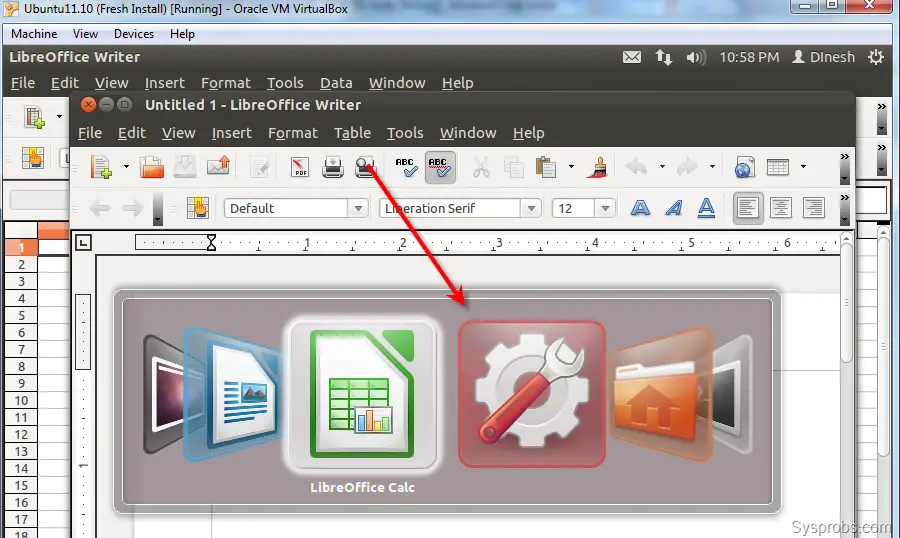
How I can confirm it? pressing ALT+TAB is working like below which is part of 3D unity.
If you are great fan of Ubuntu and Oracle VirtualBox I’m sure this guide and my experience would be helpful in some way. If there is a work around to make the 3D unity permanent without starting it manually, please share in comments area.

댓글 없음:
댓글 쓰기